
The Home Screen
When you first login to Zr Ware™, you will be brought to the Home Screen.
The home screen contains two pop out tabs.
1. The right side of the screen has the Call Center tab and
2. the left side has the Message Center tab.

3. At the top of the Home Screen, you will find the menu bar.

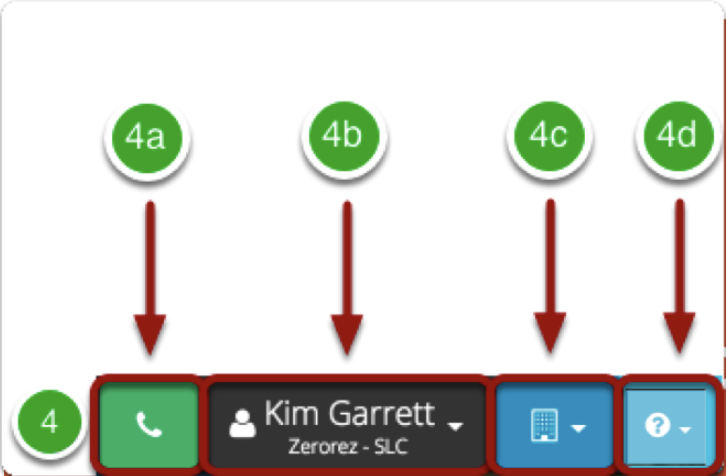
The top right corner of the Home Screen consists of the New Call button, profile information, company button and the help and documentation button.
4a. The New Call button is used each time a new call is taken and will be discussed in detail in the chapter "Using the New Call Button"
4b. Clicking on your name in the profile will allow you to open your profile and change your password. This is also how you log out of Zr Ware™.
4c. If you have access to more than one company in Zr Ware™, hovering over the company button will also allow you to switch companies.
4d. This button is the help and documentation button, and will navigate you to the help site. Hovering over it will a drop-down which will allow you to go to the documentation or submit a support request.
Comments
0 comments
Please sign in to leave a comment.