
How to Process a Payment
1. Connect Devices
This manual assumes that your mobile device is already paired via bluetooth with the swiper.
For instructions on how to pair your device, see instructions for iOS or Android.
1.1. Connect Devices in Point Of Sale App (iPhone Only)
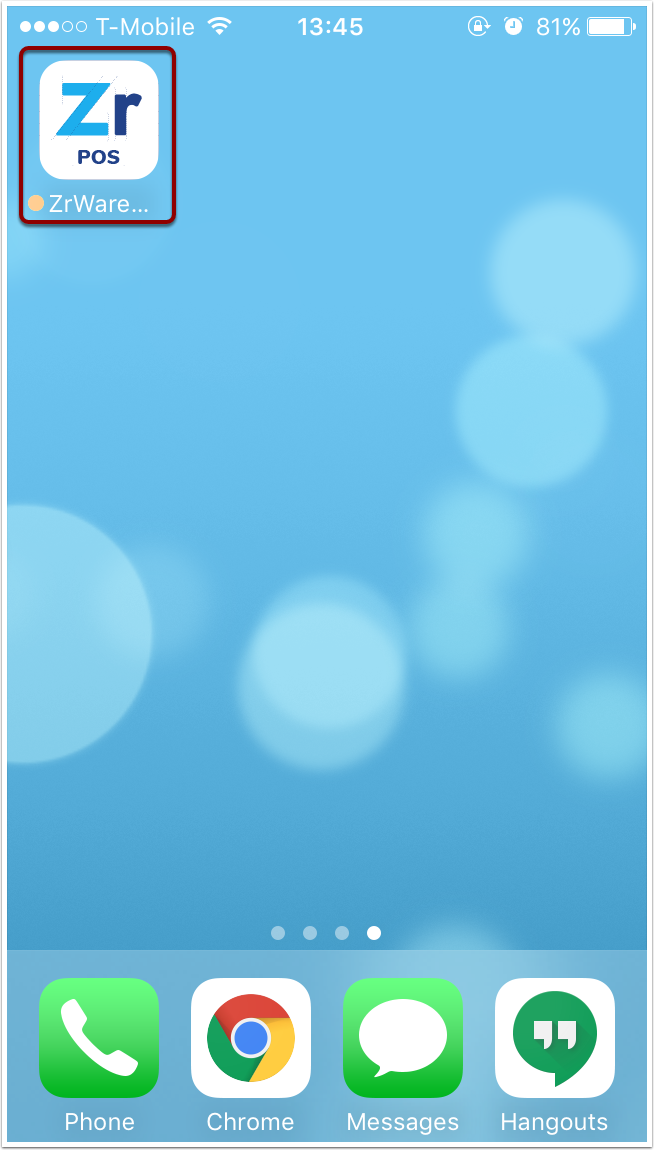
If you are using an iPhone, it is best to launch the Point of Sale App from the home screen and ensure that the app has connected with the card processing device before processing a payment.
Launch the app.
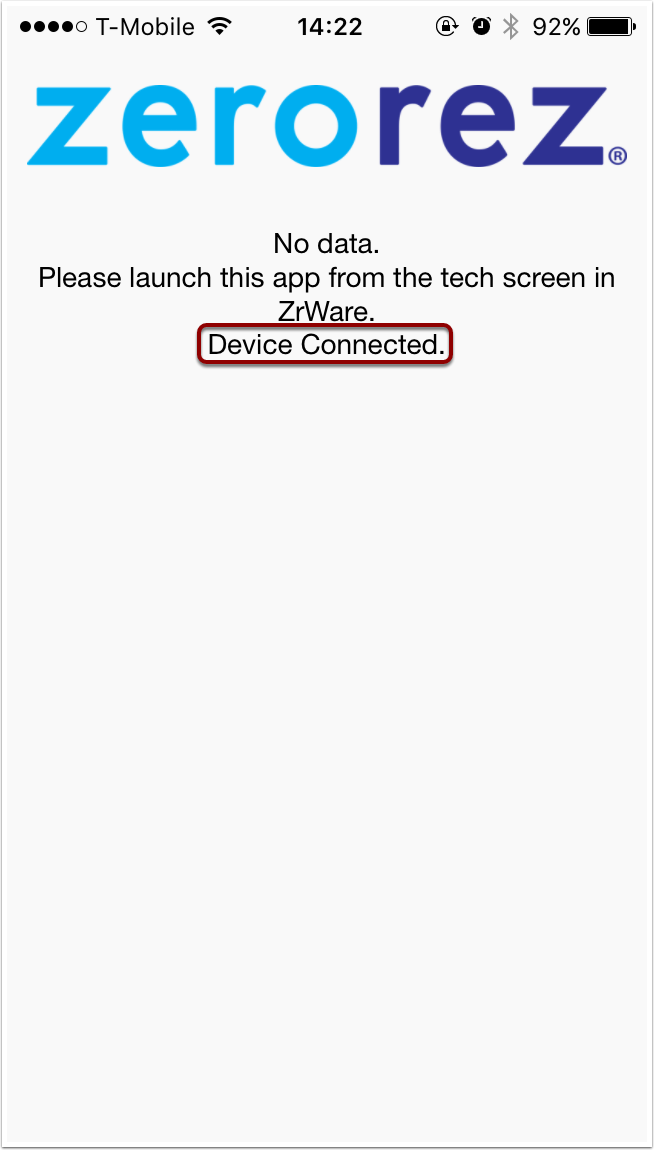
Wait until you see the text that says, "Device Connected".
If you don't see "Device Connected", but instead the app displays "Connecting to Device" for a long time, check and make sure that bluetooth is on and that your phone is paired with the Castles device (see 1.1 Pair Devices with Bluetooth above).
2. Process Payment
2.1. Launch Point of Sale App
The Point of Sale App must be launched from within zr ware™. Launching the Point of Sale App directly from the home screen will not work.
To launch the app, open the Add Payment screen in zr ware™ and go to the screen where you would normally add a credit card payment (the screen is shown below).
Click the Launch button.
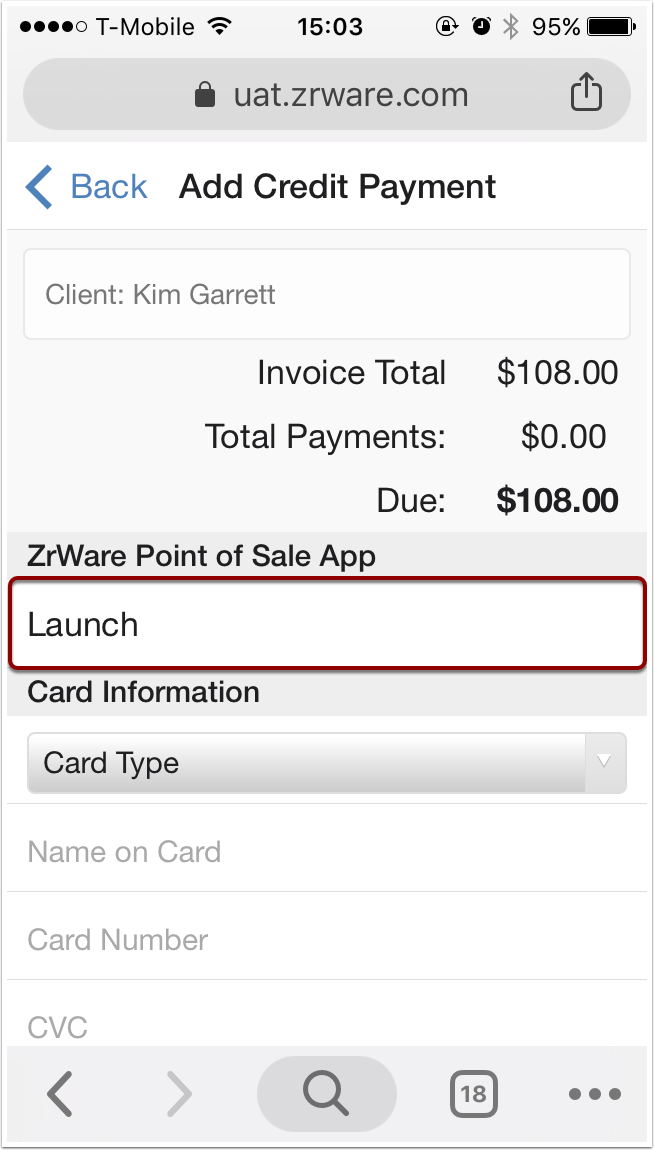
The Point of Sale App will launch and attempt to connect to the card processing device.
If you are using iPhone and this is the first time launching the Point of Sale App since your devices were connected, it will take some time for the device to update.
If you are not using iPhone, you can skip this section (go to 2.2 Start Transaction).
You will see messages like the following.
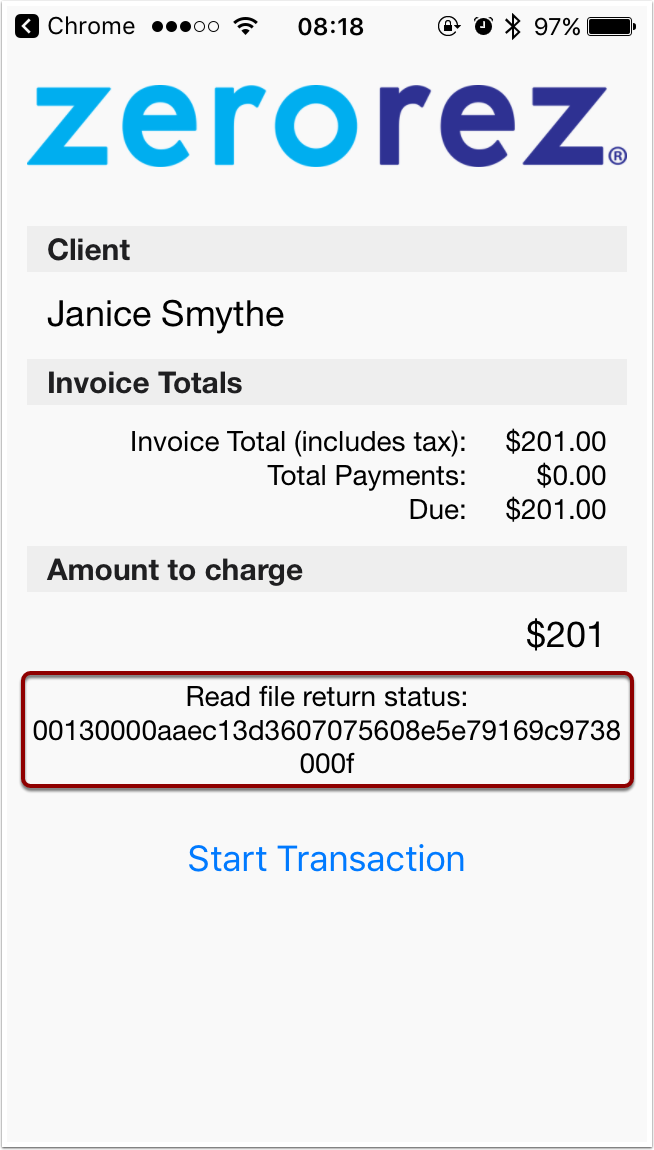
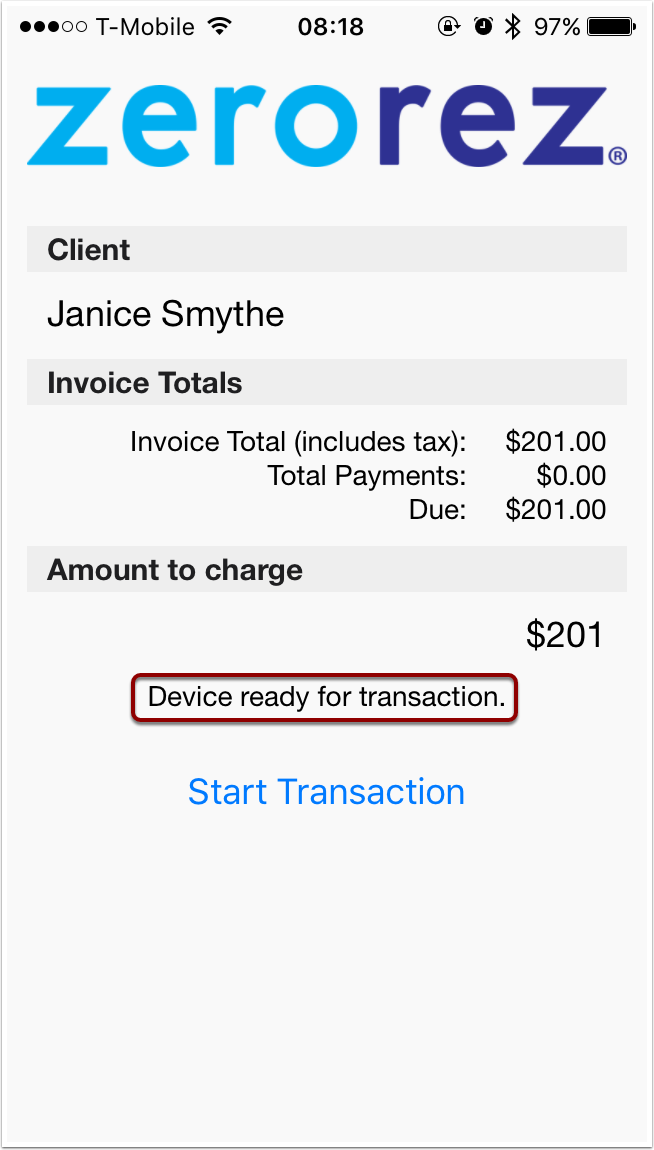
After it is finished updating, you will see the message, "Device ready for transaction."
The device is now ready for you to process payment.
2.2. Start Transaction
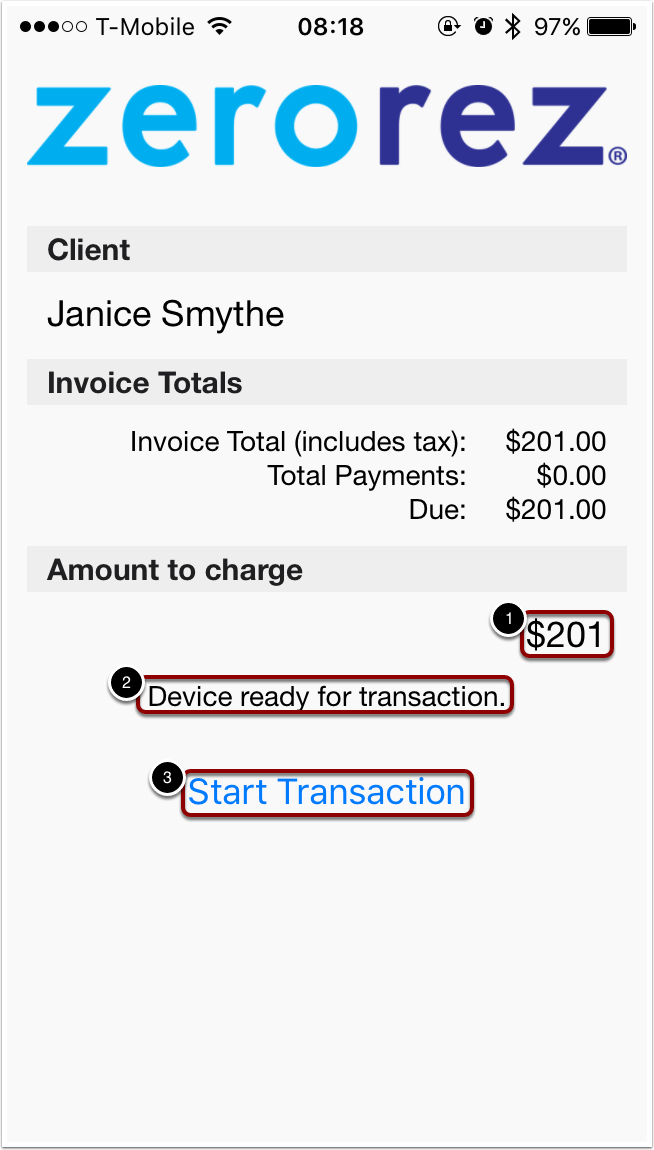
By default, the payment amount will be the full amount due.
- Verify that the payment amount is correct,
- Verify that the message indicates the device is ready for a transaction.
- then tap the "Start transaction" button.
You may run into errors after pressing "Start Transaction". See the Errors section (#3 below) for details on specific errors.
2.3. Complete Payment in Point of Sale App
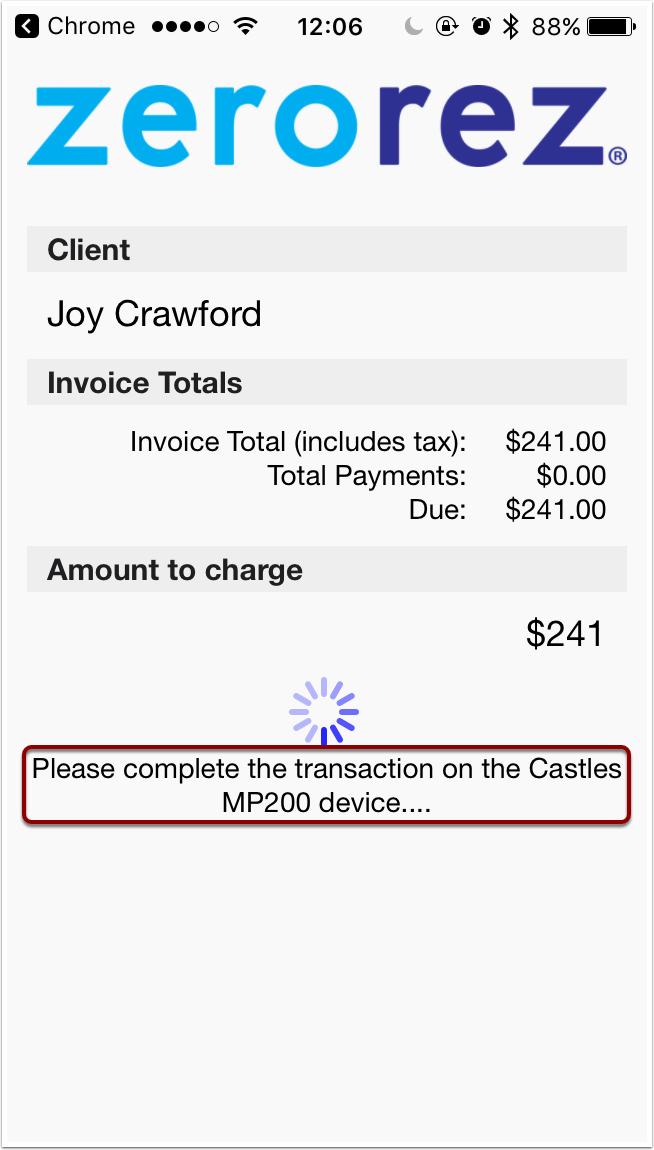
If your devices are successfully paired and the card processing device has successfully updated, you will see the following message, "Please complete the transaction on the Castles MP200 device".
When you see that message, follow the instructions on the card processing device until payment has been processed successfully.
After following instructions on the card processing device, the customer will be prompted for a signature on your mobile device.
Have them sign.

2.4. Return to zr ware™
After the payment has been processed and the signature has been saved, you will receive a message stating that the transaction was complete and to return to the browser.
The payment has been has been added to the invoice in zr ware™ and you can return to the browser.
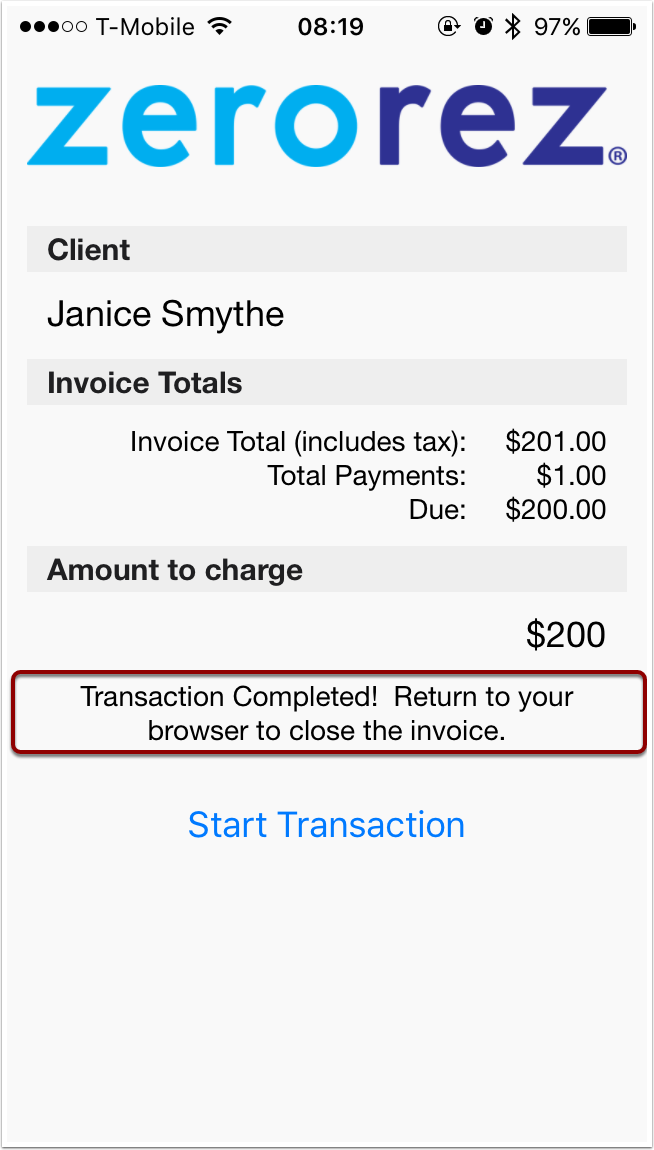
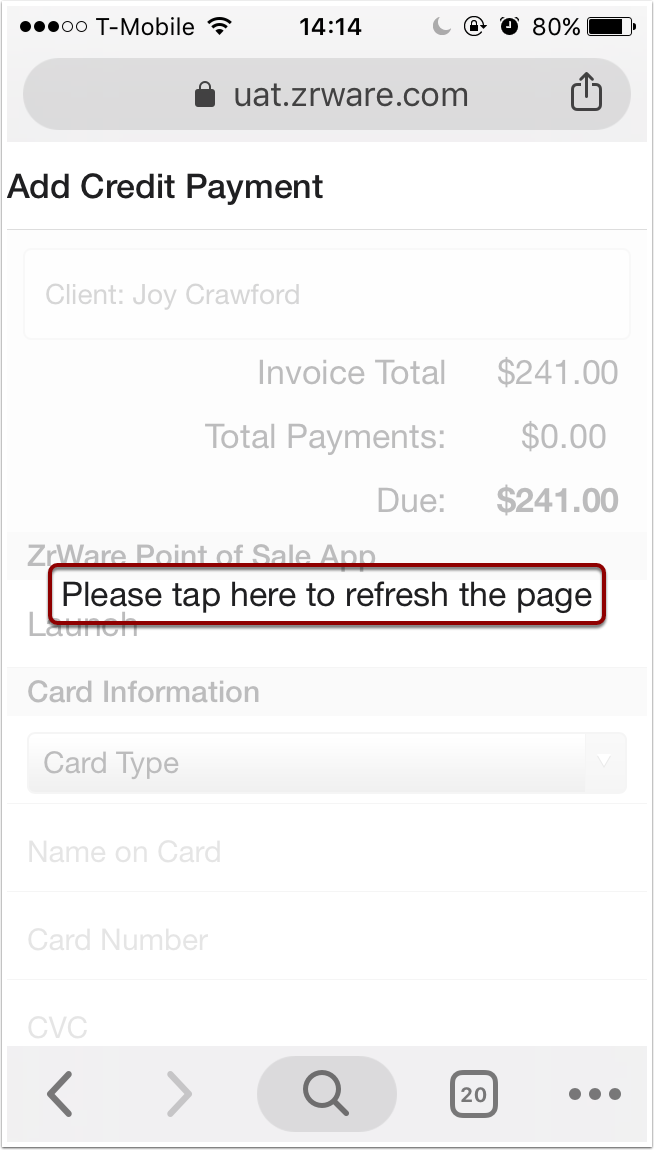
Once zr ware™ is open, tap to refresh the page and continue in zr ware™.
2.5. Verify Payment
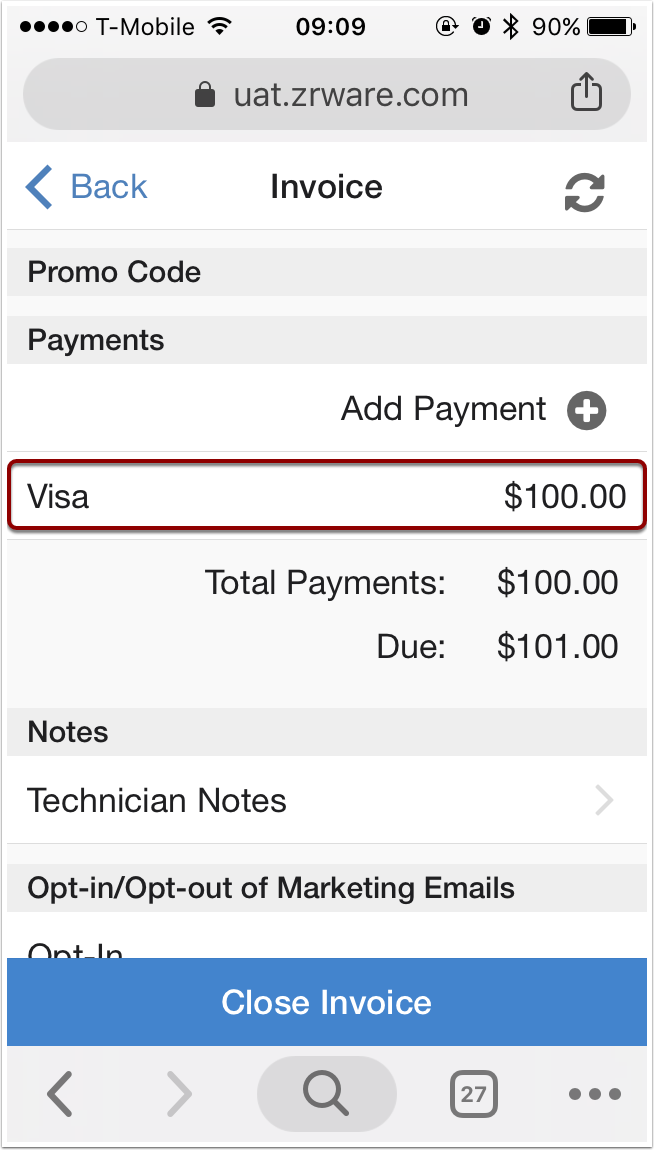
After returning to zr ware™, verify that the payment is visible on the invoice screen.
If it is visible, you have successfully added a payment to the invoice.
If the payment does not appear on this screen after refreshing, there is a chance that the customer was charged but the payment was not added to the invoice.
Please contact a finance admin, who may be able to find the missing payment and add it to the invoice.
Comments
0 comments
Please sign in to leave a comment.