
Open Map View
- Click the Schedule Tab
- Click Map View
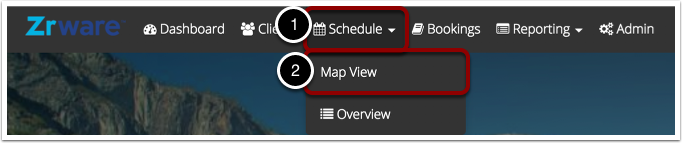
The route panel will be on the right side of the screen.

Open Schedule
Click the calendar icon to open the schedule for the route.
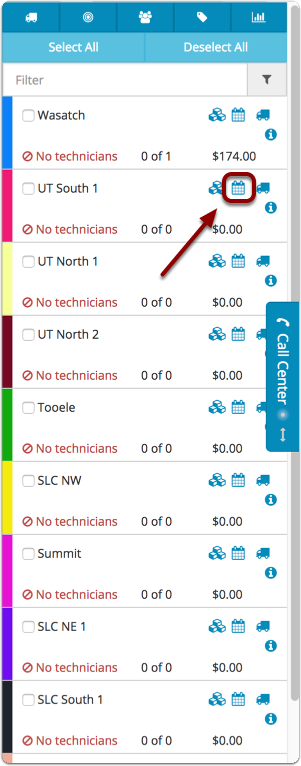
The schedule will appear to the left of the route panel.

Drag Appointment to Route
Click and drag the appointment pin onto the schedule.
The time slot on the schedule that is highlighted in blue is the area that the appointment will fill.

The job will be placed on the corresponding schedule and the pin has been removed from the map.

Route Multiple Jobs at Once
You also have the ability to route multiple jobs simultaneously
Click the route simultaneously button in the top right of the screen

Select Appointments
Click the appointments in the order you would like them to be on the schedule. They will be highlighted with a blue shadow.
Then drag them to the route like you would a single appointment.

The appointments will move to the schedule in the order that you clicked them and the pins will be removed from the map
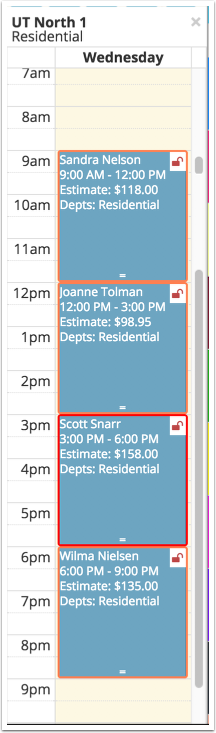
Continue dragging appointments onto the schedule until all pins are removed from the map

Ensure All Clients Are Routed
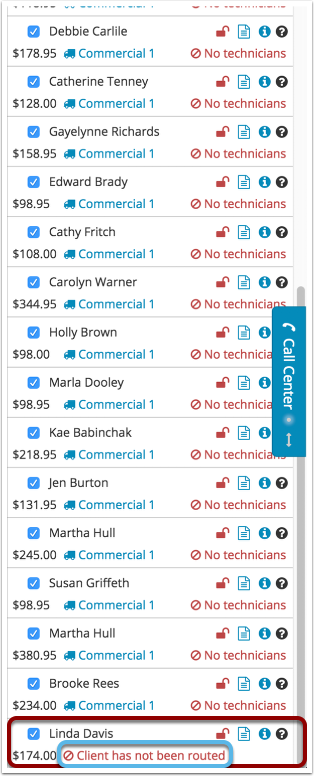
Click to view the appointment list. Make sure that all clients have been routed onto a schedule.
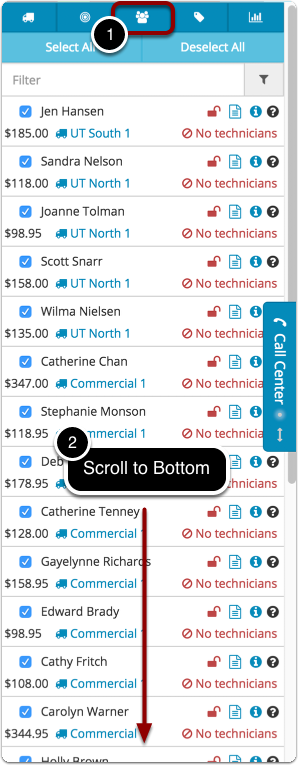
Un-routed appointments appear at the very bottom of the list; scroll down to view them.
An un-routed appointment's description will say, "Client has not been routed" instead of showing what schedule it is on.
If needed, use previous steps to route these appointments.
Comments
0 comments
Please sign in to leave a comment.