
How to Fill Addresses in Zr Ware™
There are three places where an address is filled in Zr Ware™.
- When adding/viewing an address to a client on the booking screen,
- When adding an address to a client on the client screen,
- and testing a Tax Rate in Admin > Sales Tax.
Uses
There are three typical uses for the address screen.
- Adding a New Service Address
- Using or Editing an Existing Service Address
- Viewing an Existing Service Address
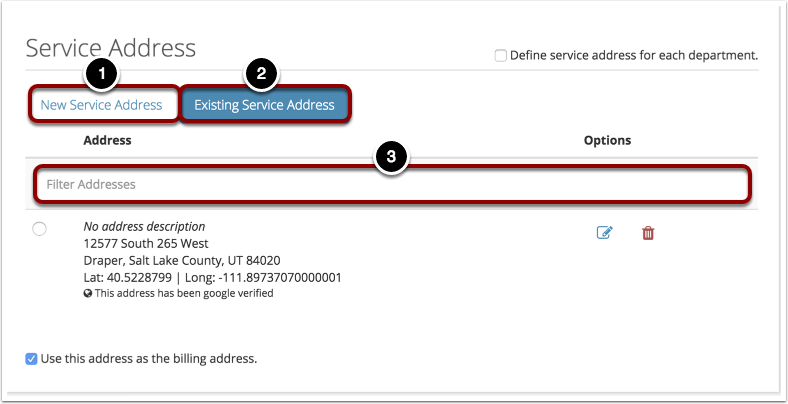
1. Add a New Service Address
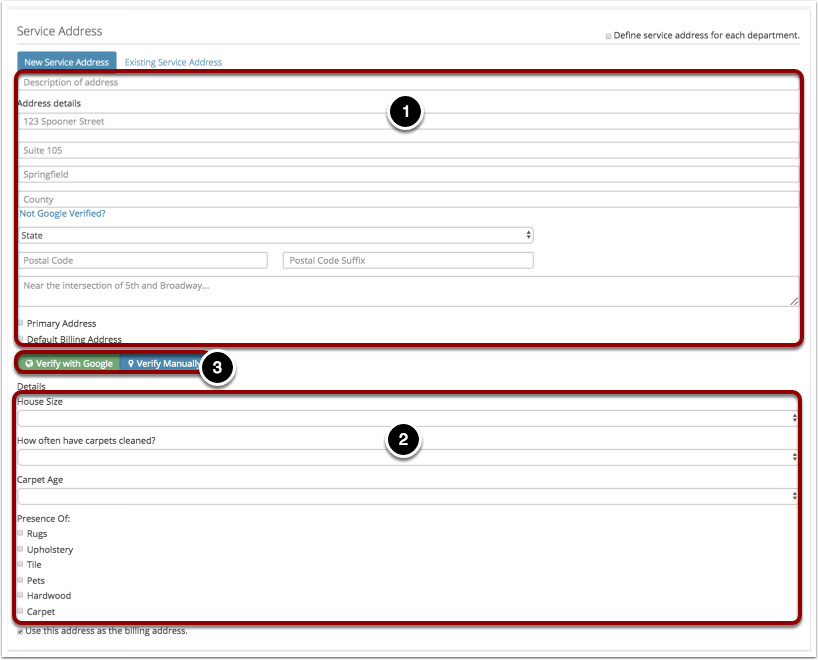
1.1. Add Service Address Information
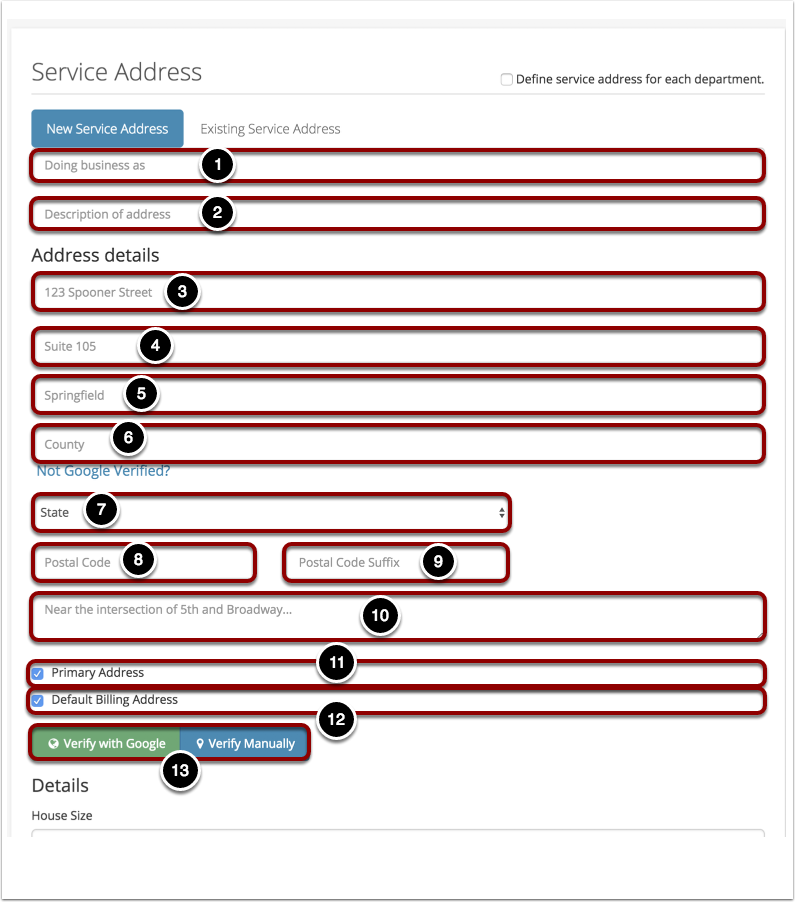
Enter the service address. Address form may look different depending on your companies country.
- Doing Business As
- You have the option to enter a description of the address: e.g. Home, Rental, Apartment.
- Street Address
- Apartment or House Number
- City
- County
- State
- Postal/Zip Code
- Postal Code Suffix
- You can give detailed information such as cross streets for the address.
- Primary Address. This checkbox marks the primary address for the client. This is to help find this particular address in searches on clients with a large number of addresses.
- Billing Address. This checkbox marks the default billing address for the client. When bookings are created, this address will be automatically be selected as the billing address for the booking.
- Verifying an Address
Note: If you are using the Tax Calculator in Admin -> Sales Tax you only need to enter the Street Address, City, County, State, and Postal Code to check the tax amount for the address.
The Details Section also does not apply.
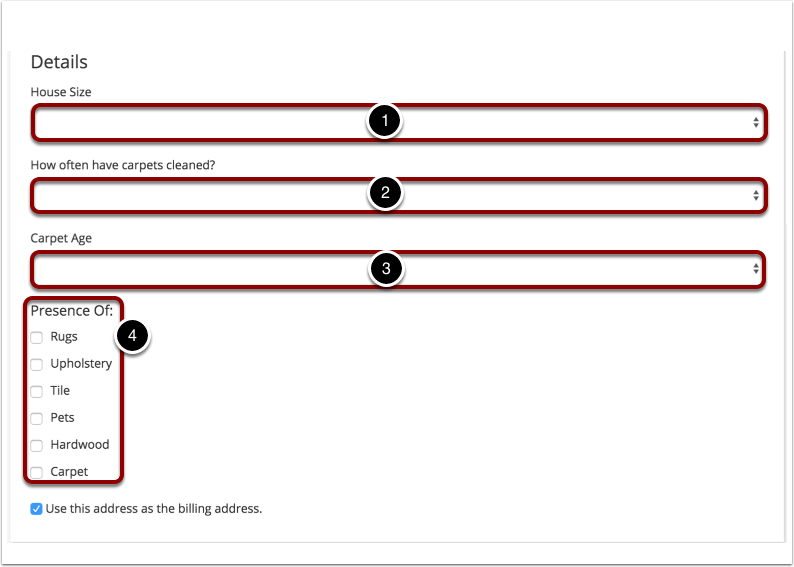
1.2. Enter Details
- House Size
- Cleaning Frequency
- Carpet Age
- Potential Future Cleaning Opportunities
1.3. Verify Address
Be sure to do this step last, as any changes made to address data after it has been verified will require the address to be verified again.
1.3.1. Verify Automatically
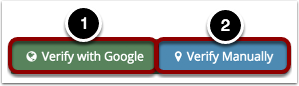
If you have already manually entered the address, you can simply press the green "Verify with Google" button, and it should be verified.
Otherwise, if you have not entered the address, you can use the following.
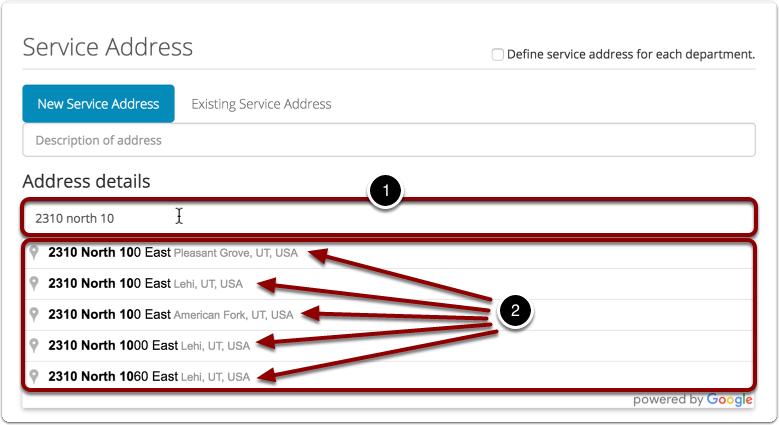
- As you begin to enter the address, the auto-populate will begin to match addresses with Google.
- Select the correct address from the list of addresses that appear.
The city, state, and ZIP code will then populate.
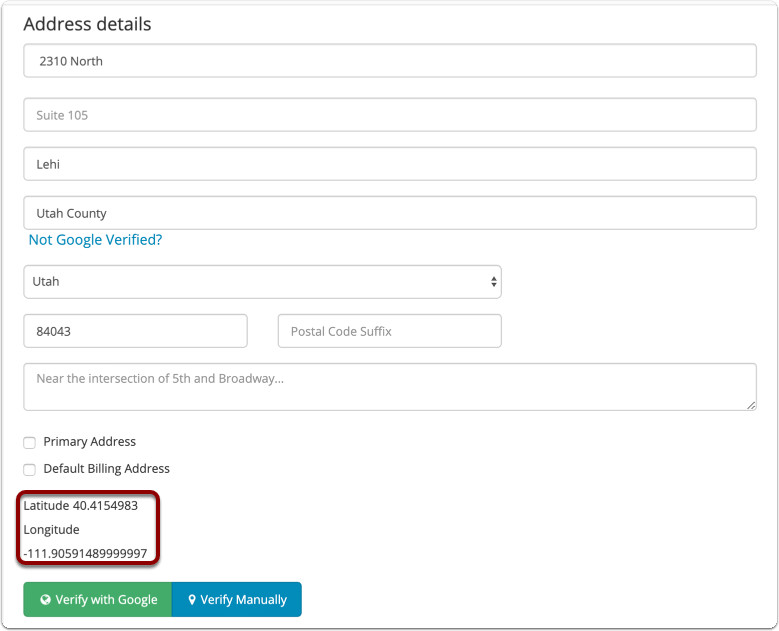
If you selected an address using the dropdown, it is already Google verified and the Latitude and Longitude will be shown.
You have successfully set the address!
1.3.2. Verify Manually
If you cannot get the address to verify with Google and have verified with the customer that the address is indeed correct, you can click the blue "Verify Manually" button.
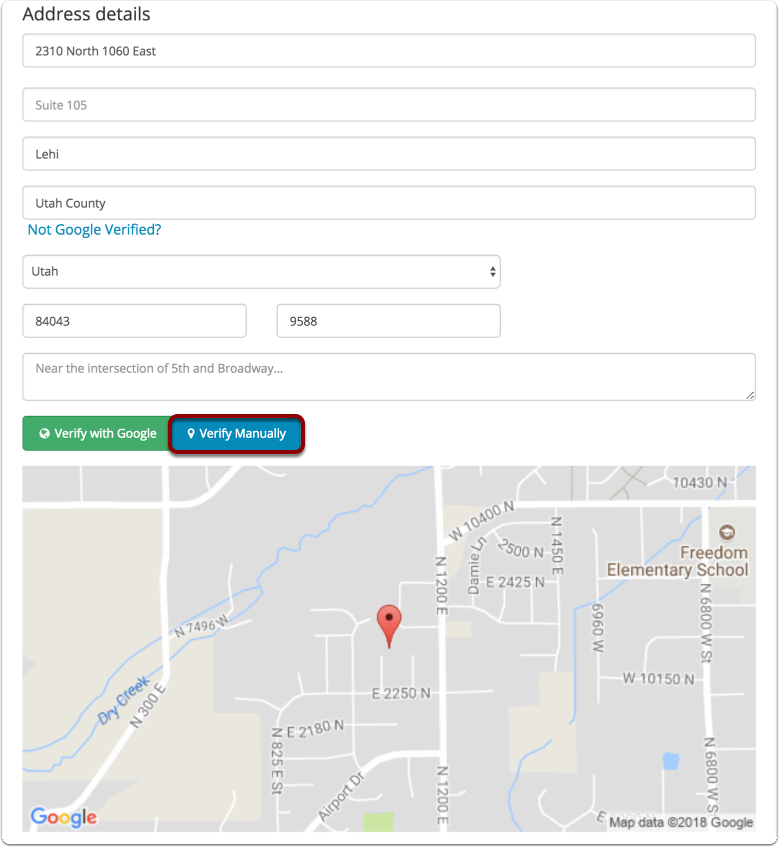
- You then can zoom in on the map and manually place the red pin on the customers location by clicking on the map.
- Alternatively, you can enter the Latitude and Longitude manually.
- If Google is not up to date but you know the address exists and you don't know the Latitude and Longitude you can try using https://www.latlong.net/ .
- Type in the address at the link provided above and see if they have the Longitude and Latitude for this address. If they do you can copy and paste these into Zr Ware™.
Click Confirm.

When you are finished, you should see the Latitude and Longitude, as well as the correct address, in the Address Details section of the screen.
2. Using or Editing an Existing Service Address
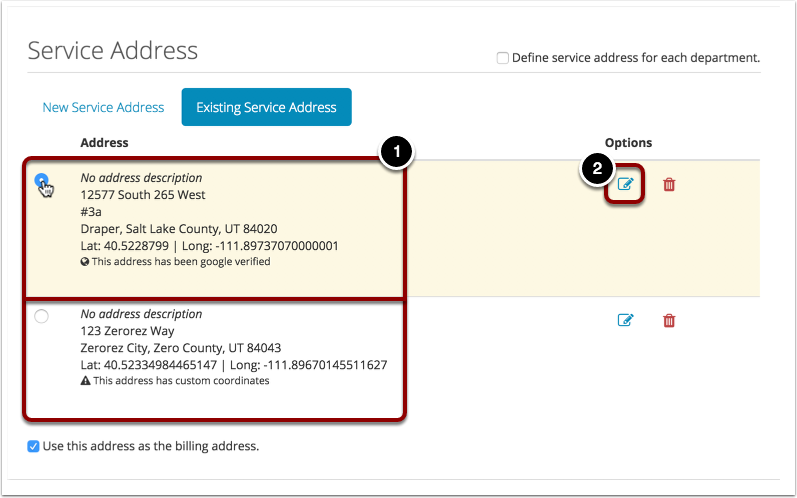
2.1. Use Existing Service Address
Select an address from the list of addresses that appear.
This address will be used as the service address.
If you are adding an address on the client screen, selecting the radio button shows the address on the map, which allows you to verify the information with the client.
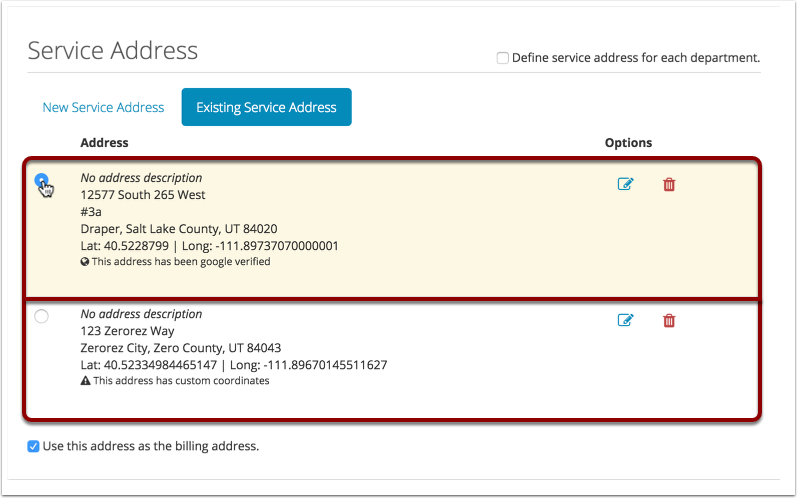
2.2. Edit an Existing Address
To edit an existing address, click the edit button by the address you want to change.
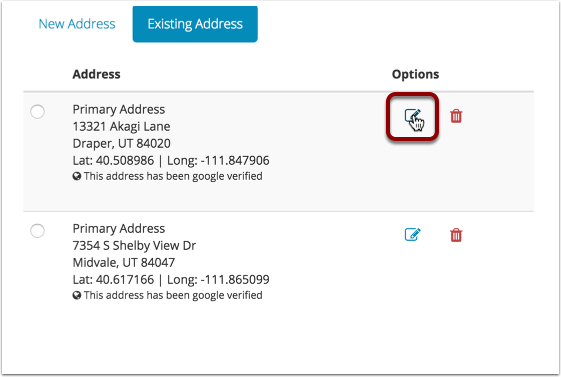
This will bring up the edit address screen. The steps for editing an existing address is the same as for adding a new one, but you only need to make changes where they are needed. When you are finished, click "Update all and return to previous screen".
The address will be saved.
Because you are changing an existing address, upcoming appointments that use the address you are editing will also change. They will be displayed here.
However, the address of previous completed bookings will not be changed to preserve historical accuracy.

3. Viewing an Existing Service Address
Service addresses can be viewed either on the booking screen or the client screen.
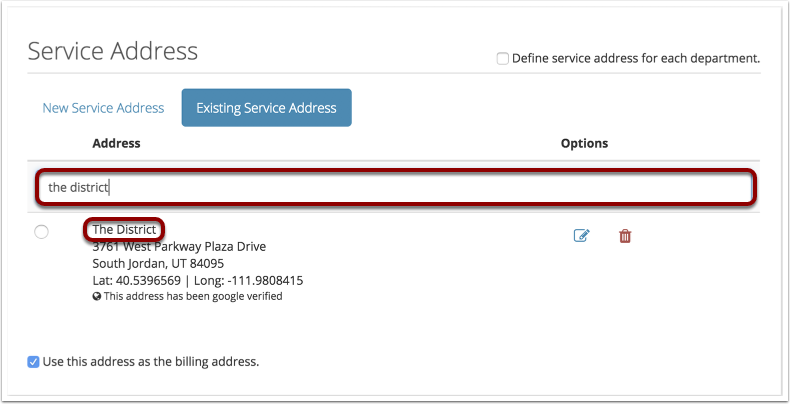
A filter has been provided that allows you to search addresses using the address description, street address, city, state, zip code, latitude, or longitude.
This is especially helpful for clients with many addresses.
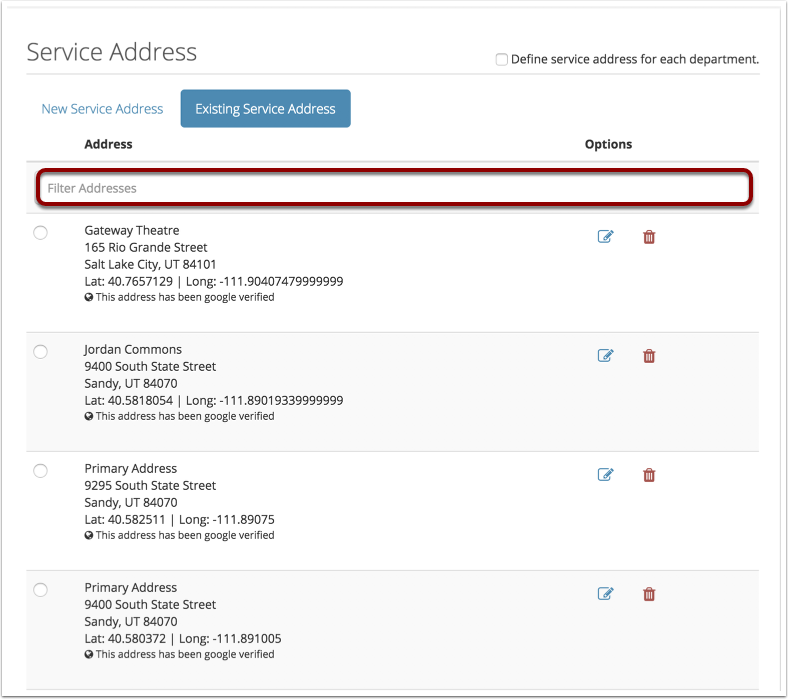
Typing text into the search bar will automatically filter addresses.
Comments
0 comments
Please sign in to leave a comment.