
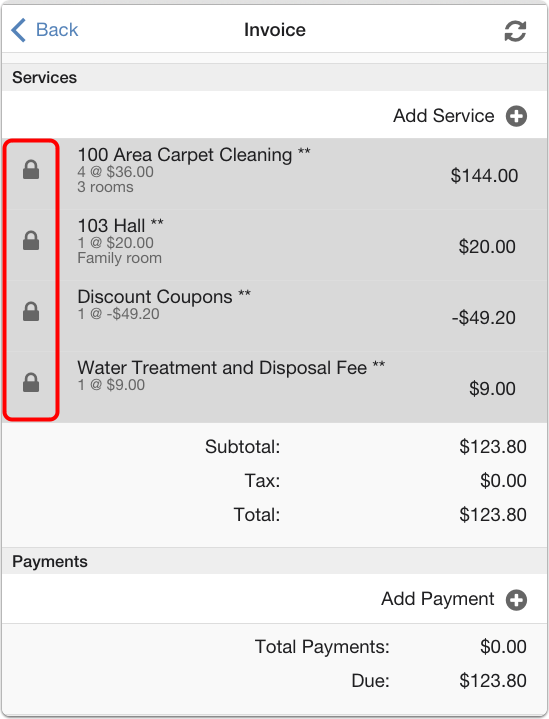
When a technician goes to the invoice screen on the mobile app, all items are locked. The lock icon means that those products were originally booking products.
There are 2 ways that your franchise can handle the locked products and services while the technician is in the field.
1. A franchise that strongly manages add-ons with no negative add-on option.
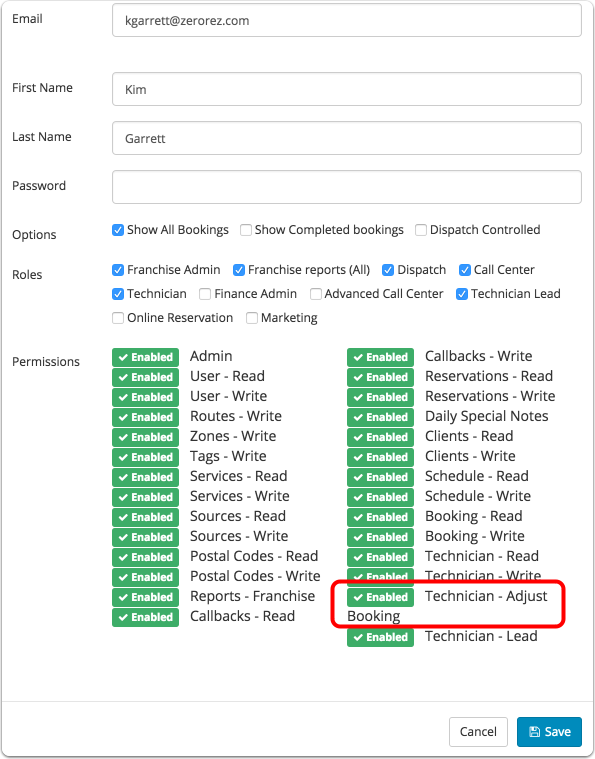
To prevent negative add-on, and give the technicians the ability to adjust the original booking, your technicians must have the Technician Adjust Booking permission Enabled.
The technician can click on the item and remove it from the invoice and it will reset the baseline for add-on.
Please note: The original booking will be saved in the booking logs.
2. A franchise that allows a negative add-on option
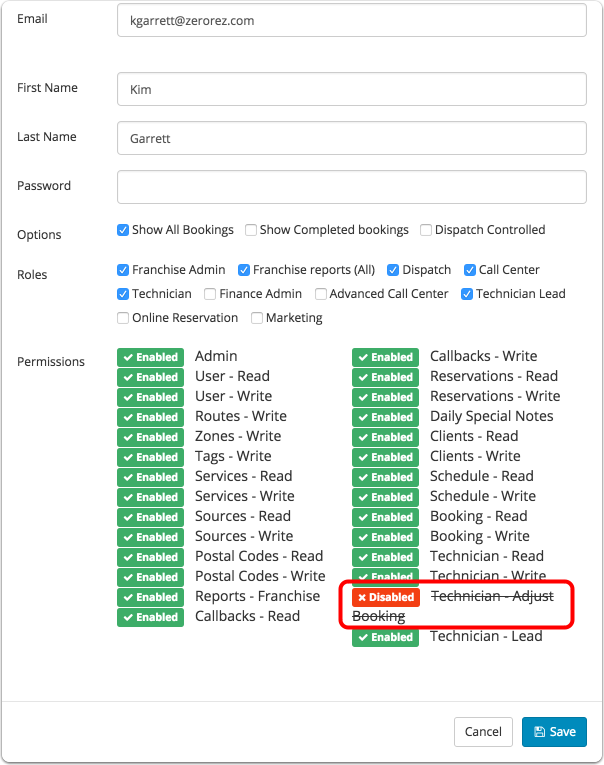
If your franchise wants to use the negative add-on option, the technicians need to have the Technician - Adjust Booking permission Disabled.
The technician can click on the item and remove it from the invoice but removing that item does not reset the baseline for add-on.
Please note: Any changes made by the technician will show on the Office Copy of the invoice.
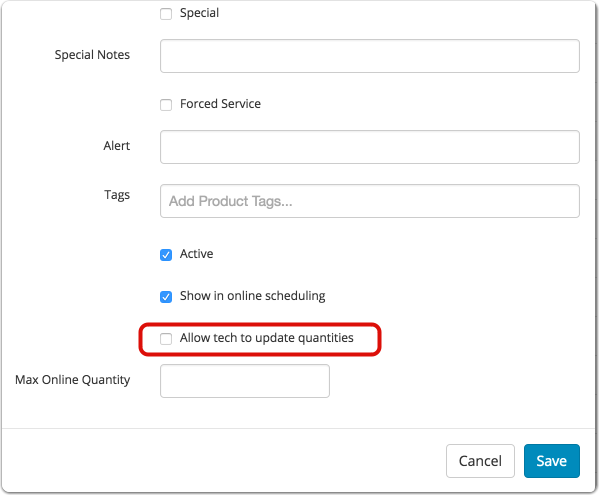
This last option has nothing to do with the “Technician Adjust Booking” permission
If you would like your technicians to be able to increase or decrease the quantity or be able to adjust the price on the locked items, you will need to go to Admin>Products and Services for each product you would like to allow them to adjust. After you click on the specific service, check the box “Allow tech to update quantities”. If that box is checked, they will be able to adjust the quantity and price and it will adjust the original booking.
Comments
0 comments
Please sign in to leave a comment.