
In the Online Scheduler/Intelligent Booking Feature, there are many factors that are considered when showing availability to a Customer.
Availability is determined by the following factors:(Exception: Only Full Day Closures are unavailable for selection on the Reservation Request Mode.)
- Arrival Windows
- Appointment Length (Which is determined by Admin → Booking & Scheduling)
- Departments
- Online Capacities, Postal Codes, Routes, and Zones
- Reservations (Admin → Reservations)
- Routes
- Existing Appointments on a Given Route
- Capacity Amount (Admin -> Booking & Scheduling)
- Pending Reservations
1. Arrival Windows
Customers/CSR's/Dispatch can only schedule jobs in the Arrival Windows defined in Admin → Arrival Windows.
Things to double check:
Do I have an arrival window created for the requested job time? If not, no availability will be shown. You will need to create a new arrival window where that desired job time will fit.
Does the job have a certain department service on it but the arrival window isn't set to service that certain department? If so, no availability will be shown. You will need to drag and drop that department onto the arrival window.
Is this a online booking and do I have that arrival windows department set to be available online (Orange). If not, no availability will show up. You will need to click on the department in the arrival window until it shows orange.
Is this a job being booked by a CSR/Dispatch and do I have that arrival windows department set to be available online (Blue). If not, no availability will show up. You will need to click on the department in the arrival window until it shows blue.
How does it work?
When an arrival window is selected, the Online Scheduler/Intelligent Booker will attempt to place the customer's appointment at the beginning of an arrival window for a given route. If this appointment overlaps an existing appointment or closure block or the route end time is not after the route start time, then the Online Scheduler/Intelligent Booker cannot place the appointment on the route.
It is recommended to have several Arrival Windows to increase the chances a customer has of finding an available window for a given day.
For example, these arrival windows…
…appear on the Scheduler like this.
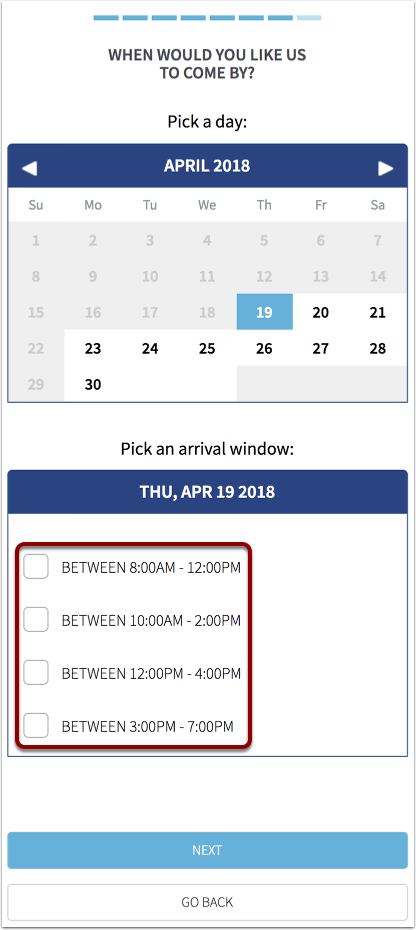
- Test it out in your training environments
- Contact support.
2. Appointment Length
The Appointment Lengths defined in Admin → Booking & Scheduling will also determine the lengths of appointments scheduled with the Online Scheduler/Intelligent Booking feature. In other words, the dollar amount of the booking determines the length of the appointment.
If a customer has a large dollar amount on their booking, the customer may show no availability if the length of time in between the first arrival window and the end time set for the routes is less than the length of the customer's appointment (as defined in Admin → Booking & Scheduling).
In the following example, the customer has an appointment length of 8 hours, the route closes an 5:00 pm, the first arrival window starts at 8:00 am, and all other arrival windows begin after 10:00 am.
Given this scenario, only 8:00 to 10:00 am window is available, because all other windows would place the appointment in such a way that the end of the appointment would extend past the end time set for the route.
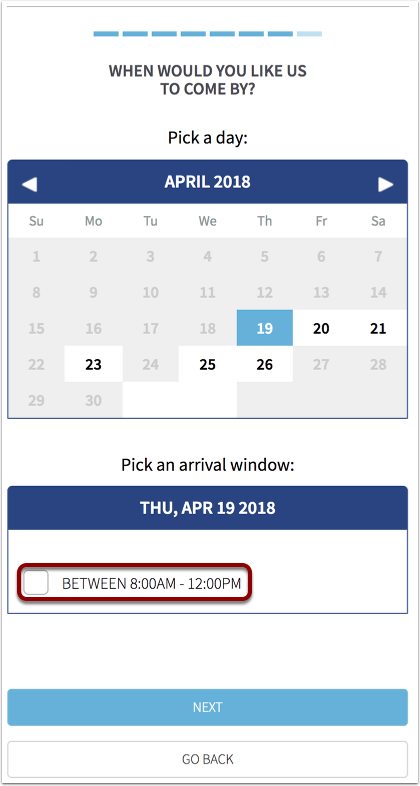
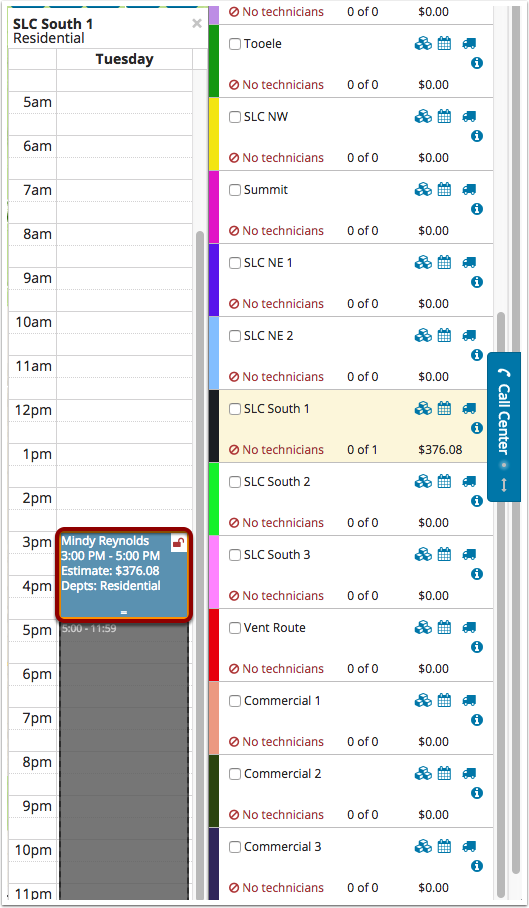
In addition, the 24th is not available in the image above because there is an appointment on the route at 3:00 pm, which would overlap the appointment if it were placed on SLC South 1 (which is the only route servicing the customer's zone in this scenario).
3. Departments
A route can service a customer only if a route that services the customer's postal code is assigned to service the Department for which the customer's chosen products belong to. Routes are assigned Departments in Admin → Routes.
It is recommended that if you have products and services assigned to a Department and those products and services are Online, that you also assign those respective Departments to Routes so that Customers can have availability for those products.
In this example, the Customer has chosen products for the Residential Department…
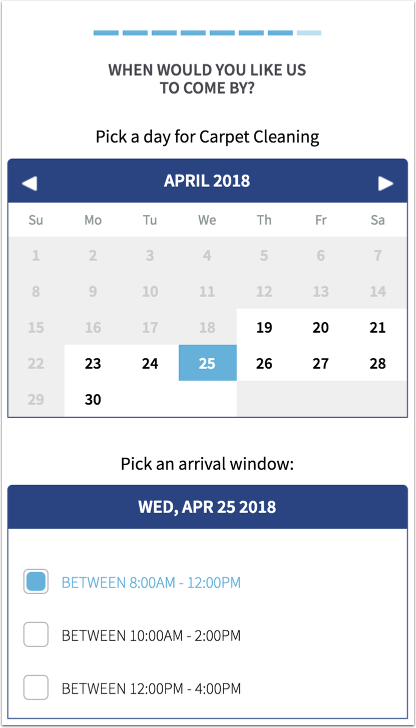
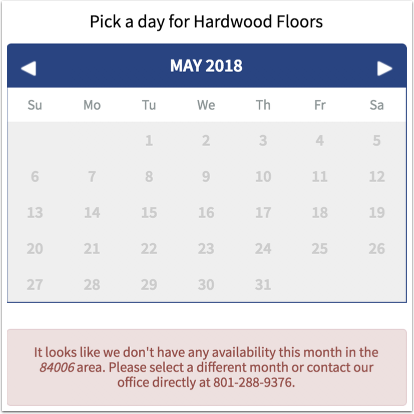
…and the Hardwood Department. The route which can service the customer does not do the Hardwood Department. Therefore, no availability shows for that Department.
The route needs to be assigned to service the Hardwood Department in Admin → Routes before availability will show for the customer. In this example, it only services the Residential Department.
4. Online Capacities, Postal Codes, Routes, and Zones
When determining availability, the Online Scheduler/Intelligent Booker takes the Postal Code given, and identifies which Zone that Postal Code belongs to (Postal Codes are assigned to Zones in Admin → Zones). Using that identified Zone, it determines which Routes are assigned to it on any given day. The Online Scheduler/Intelligent Booker uses all the Routes assigned to a Zone in Capacities on a given day to determine availability for that day. If a Zone has a Route assigned to it on a given day, then the Scheduler will attempt to place jobs on those Routes for that day.
Admin > Capacities
It is recommended that you have Online Capacities set so that every Zone has multiple Routes assigned to it. It is also recommended to have each Zone set with a minimum of 4 jobs per route it is assigned, and that each Route assigned to a Zone has a minimum of 4 jobs per day.
Below, this customer has no availability.
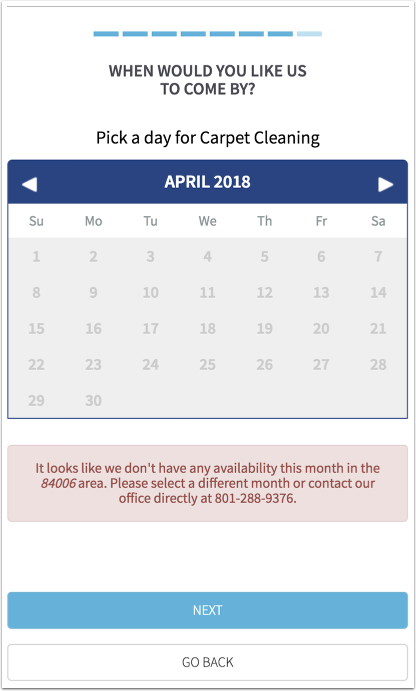
In this example, the Customer with no availability is using the 84006 Postal Code, which belongs to the SLC S Zone (this screen can be found in Admin → Zones).

Note that the SLC S Zone has no Routes associated with it. Admin > Capacities.
If you are using the new capacity view to set up your capacities, the documentation for that is here.

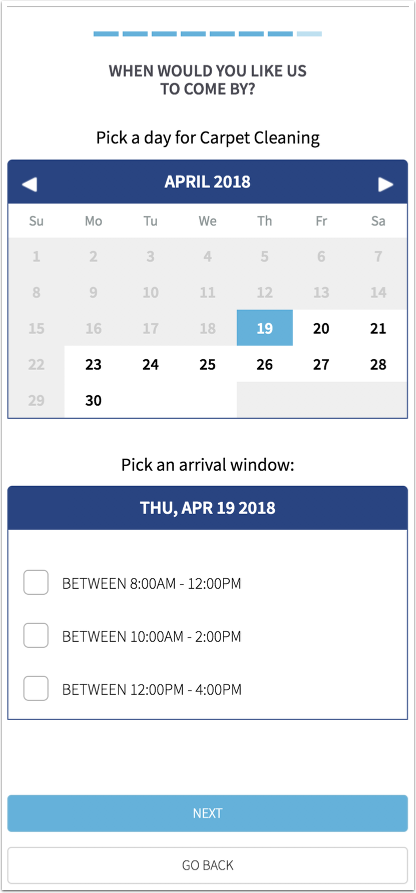
After the Online Capacities are set and copied for the month of April as follows…

…the Customer will have availability.
5. Reservations
Availability can be affected by settings in Admin → Reservations, particularly the "First Date Available Online" setting and the "Count Full Day Closures" setting.
See the article for more information.
6. Routes
6.1. Start and End Times
The Start and End Times for each Route affect the availability on the Online Scheduler/Intelligent Booker. Start and End Times are defined in Admin → Routes.
If an Arrival Window is defined to begin before the Start time of a Route, then the route cannot service those appointments, and those arrival windows will not appear as available for that route.
If the Appointment Length extends past the End Time of a Route, then that Arrival Window will not appear as available (in other words, the estimated End Time of the Appointment must be before the End Time of the Route).
It is recommended to set the Start and End Times of each Route so that the Start Time is the earliest desired appointment, and the End Time is the latest that a job will be worked.
6.2. Full Day Closures
Full Day Closures are defined in Admin → Routes.
Jobs cannot be scheduled on a day for which every Route that could potentially service the customer has a Full Day Closure.
A day for which every Route has a Full Day Closure will show no availability in the Online Scheduler/Intelligent Booker.
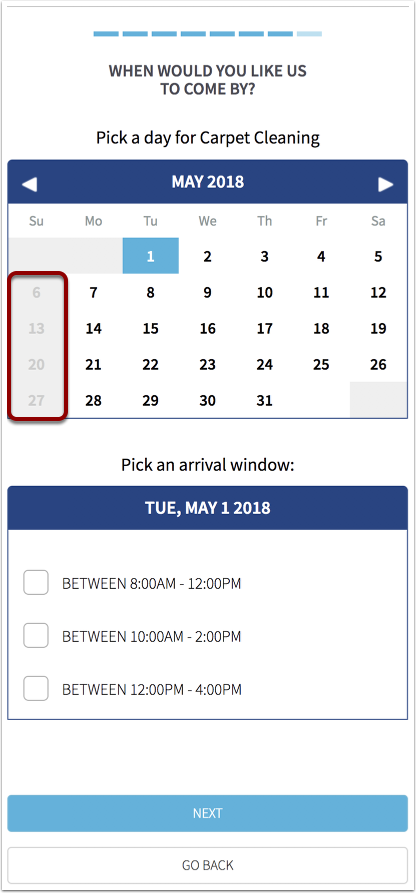
Each Sunday in May has every Route closed…

…therefore each Sunday shows as not available.
This applies to other days of the week as well.
6.3. Closure Blocks
For scheduling purposes, the Online Scheduler/Intelligent Booker handles Closure Blocks in a similar way as Existing Appointments.
7. Existing Appointments on a Given Route
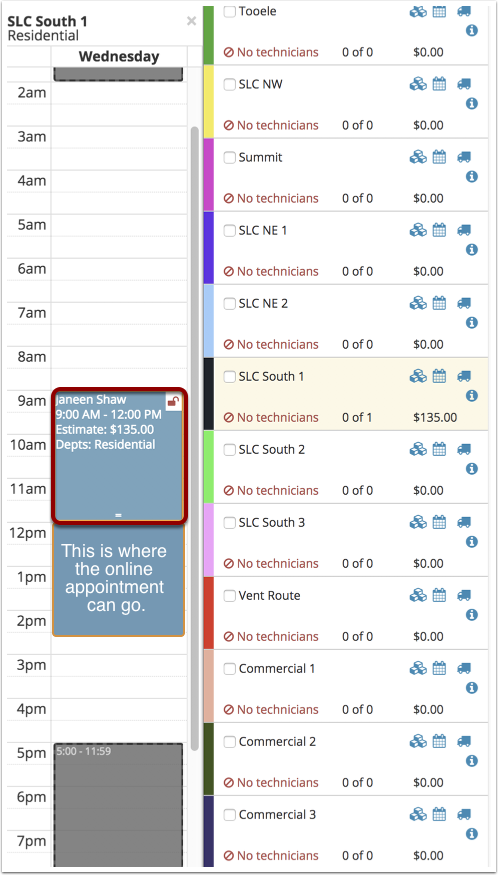
The Online Scheduler/Intelligent Booker will attempt to place the customer's job on a route at a given time (i.e. the Arrival Window specified in Admin → Arrival Windows). If the appointment would overlap an existing appointment (or closure block), then that specific time will not show as available.
In the following example, the customer does not have the 8:00 am or 10:00 am Arrival Windows open as an option to select…
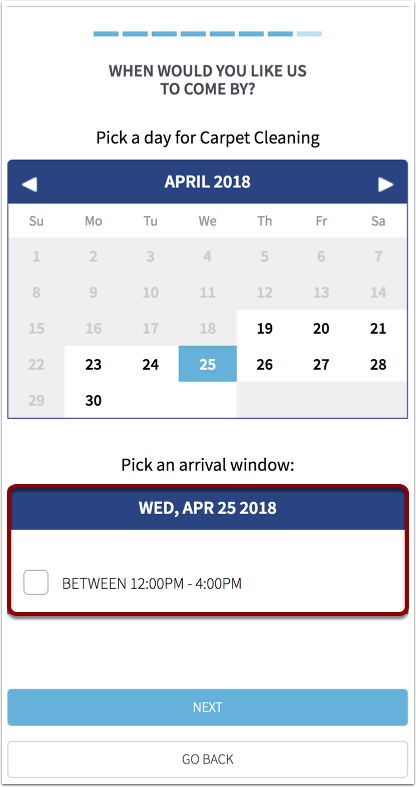
This is because there is an appointment on that day at 9:00 am. The online Customer's length is 3 hours.
The Arrival Window start times are as follows: 8:00 am, 10:00 am, 12:00 pm, and 3:00 pm.
The scheduler cannot place the appointment at 8:00 am because the appointment would end at 11:00 am. This would overlap the existing appointment at 9:00 am.
The scheduler cannot place the appointment at 10:00 am because the appointment would still overlap the existing appointment at 9:00 am.
The scheduler cannot place the appointment at 3:00 pm because it would overlap the close time of the route (5:00 pm).
The only time the scheduler can place the appointment on this day is 12:00 pm.
Capacity Amount
The capacities on Booking & Scheduling. If a job would put the total amount for a given day over their capacity, the booking will not be allowed to finalize on that day.
Pending Reservations
If another user/clients has selected a reservation slot, it will block other users/clients from selecting the same time period. Reservations remain valid for about 5 minutes before they expire and become available for other users.
Comments
0 comments
Please sign in to leave a comment.